![ringy-logo.svg]](https://www.ringy.com/hubfs/ringy-logo.svg)
To download the Chrome extension, click HERE, and choose "Add to Chrome" in the top right corner, then choose "Add extension" when prompted.
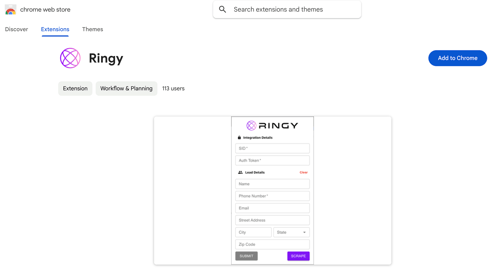
How to use the Ringy Chrome Extension:
1. Go to the "Lead Vendors" page in the Ringy app and create a lead vendor.

2. When creating a lead vendor, add any of the following fields in the "Lead field mapping" section: Full name, Email, Street address, City, State, ZIP code, Birthday. These fields determine what the extension can send to your Ringy account.
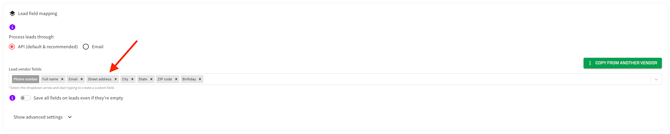
3. After saving the lead vendor, click on the edit icon to the right of the lead vendor you just created.

4. Click on "Integration Details" in the top right. Copy and paste your "SID" and "Auth Token" into the extension in their respective fields. These credentials allow you to send the lead information to your Ringy account.
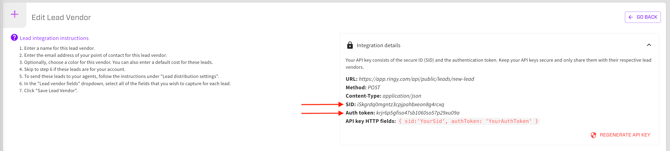
5. Refresh the page you're trying to scrape and press the "Scrape" button.
6. Once the information has been scraped, you can click "Submit" to send the lead to your Ringy account.
For more information on adding a lead vendor in Ringy to utilize for this purpose, check out this Knowledge Base article: Lead Vendor Setup.
Please note, you cannot have Dark Mode Extension on Chrome when using the scraper.
If scraping isn't supported for your website or you need to make a correction, you can also type the information into the fields manually.