![ringy-logo.svg]](https://www.ringy.com/hubfs/ringy-logo.svg)
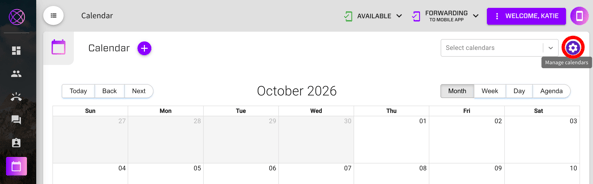
On the Calendar page, you can integrate a Google Calendar and/or an Outlook Calendar with your Ringy account. Otherwise, you will have a Ringy Calendar you are able to use. To integrate with Google and Outlook calendar, click "Manage Calendars" in the top right corner:
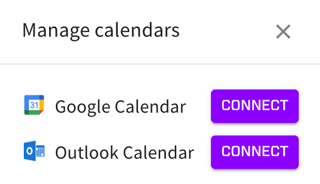
You will see connection options for both Google and Outlook while managing your calendars. You will sign in to your respective calendar account and allow Ringy to access the calendar.
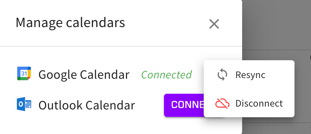
To disconnect or resync your Google or Outlook calendar in the future, under this same Manage calendars section, you will find 3 dots beside the calendar connected to act accordingly:
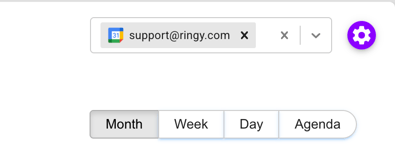
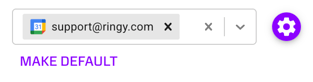
Once you have integrated your external calendar(s), click the dropdown under Select Calendars towards the top-right and select the email address of the calendar you wish to primarily use in Ringy. Click Make Default below now that the preferred calendar is chosen.
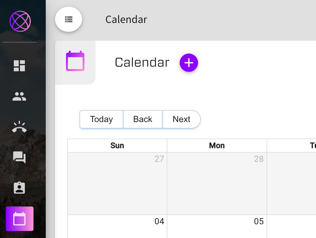
The Today, Back, and Next buttons are shortcuts to change when you’re viewing the calendar. For example, if you viewing this month's events, the Back option will populate last month's events, and the Next option will populate next month's events.
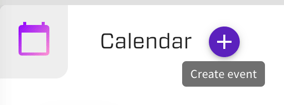
The plus button in the top left corner is used to create a new event on your selected calendar - fill out each field after selecting it then select Save Event to create an event.
The Month, Week, Day, and Agenda buttons towards the top right corner change the range of time you’re viewing on the calendar as preferred. Ringy will default to display events for the Month.